
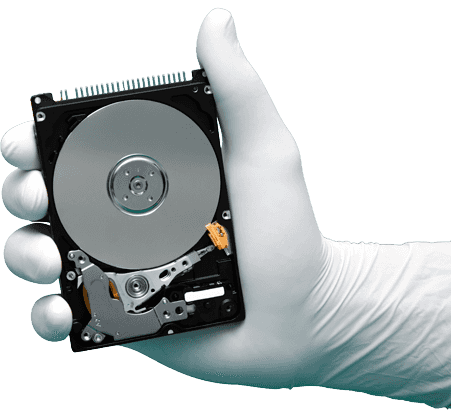

Hard Drive Maintenance
Regular hard drive maintenance keeps your computer fast and reduces the risk of losing your files. As you install programs, download updates and save files, the drive fills up and slows down.
These simple tips for Windows 10 and Windows 11 help keep your hard disk or SSD healthy – and tell you when it is time to stop and get expert help.
8 simple maintenance tips
Optimise your drives
Over time, files on a traditional hard disk (HDD) get split into pieces, which slows the drive down. Windows 10 and 11 fix this automatically with Defragment and Optimize Drives.
How to do it: Search for “Defragment and Optimize Drives” in the Start menu, select the drive and click Optimize. For SSDs, Windows runs TRIM instead of defrag – never use old defrag tools on an SSD.
Clean up junk files
Temporary files, old downloads, the Recycle Bin and Windows update leftovers can take up many gigabytes of space.
How to do it: Go to Settings > System > Storage and use Cleanup recommendations, or turn on Storage Sense to clean up automatically. The classic Disk Cleanup tool still works too.
Check the drive for errors
If your computer freezes, files will not open or you see disk error messages, check the file system for errors.
How to do it: Open This PC, right-click the drive, choose Properties > Tools and click Check under Error checking. Do not run repeated checks on a drive that is clicking – call us first.
Monitor drive health
Hard disks and SSDs keep a health record called S.M.A.R.T. It can warn you about a failing drive before you lose data.
How to do it: Use your drive maker’s free tool, such as SeaTools for Seagate or WD Dashboard for Western Digital, to check the health status every few months.
Remove old files and apps
Programs you no longer use and duplicate copies of old files waste space and slow down searches and backups.
How to do it: Uninstall unused apps from Settings > Apps, and keep at least 15–20% of the drive free so it can work efficiently.
Back up regularly
Maintenance keeps a drive running smoothly, but no drive lasts forever. A backup is the only real protection against data loss.
How to do it: Keep important files in at least two places, for example an external hard disk and cloud storage, and check that your backups actually open.
Protect against power problems
Power cuts and voltage spikes are a common cause of damaged hard disks and corrupted data in India.
How to do it: Use a UPS or a good surge protector for desktops, and always shut down properly instead of switching off at the plug.
Handle drives with care
Hard disks have moving parts that can be damaged by a drop or a knock, especially while they are running.
How to do it: Do not move a laptop or external drive while it is working, always use Safely Remove Hardware before unplugging, and keep drives away from heat and moisture.
Warning signs of a failing drive
Maintenance cannot fix a drive that is physically failing. If you notice any of these signs, your data is at risk:
- Clicking, grinding or beeping noises
- Computer becomes very slow or keeps freezing
- Files or folders will not open, or go missing
- The drive is not detected in BIOS or This PC
- Frequent blue screens or disk error messages
- Drive disappears and reappears when connected
Stop using the drive, do not run repair or recovery software on it, and call us. Every extra hour of use can reduce the chance of recovery.
Lost your college, project or office work?
We often get calls from students and professionals who have lost months or years of work because a laptop, hard disk or pen drive suddenly stopped working. Even when the device is not detected, your files can often still be recovered.
Why choose us
- No Recovery! No ChargeIf we cannot recover any data, we will not charge you a single rupee for recovery. Only a testing charge of Rs. 300 applies.
- Our ExperienceOver 1,000 recoveries completed every year from all types of storage media.
- Data SecurityWe value your privacy and keep your data completely secure and confidential.
- Free Pickup! Fast Delivery!Just give us a call – we pick up your media and recover your data with a fast turnaround.
- 10 Branches in ChennaiVisit your nearest branch, or call us for doorstep pickup anywhere in Chennai.
- New TechnologyProfessional tools and equipment for hard disks, SSDs, phones and flash memory.
Success Case
-
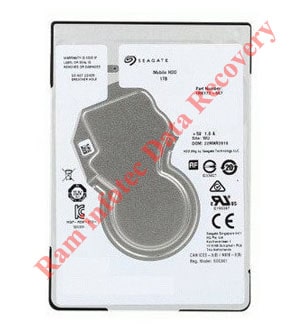
Sea 2.5″ Slim 1 Hedad Replacement Possibles By Ram infotech
This head replacement tool can be used on 2.5” Seagate slim hard drive models which have 1 platter and with their heads parked on a ramp.
This head replacement tool can be used on 2.5” Seagate slim hard drive models which have 2 platters and with their heads parked on a ramp.



Fantastic service. Professionalism in delivery, trust and commitment. i felt very sad that i may lose my data which are 20+ yrs old.. then i found Ram Infotech and approached them. My sadness turned to contentment in just 4 days. I got all my data. Good Service !
Srinivasa Prasanna

Thank you so much Raminfotech data recovery Team -- very very kind of you people. Once again, I highly appreciate the efficiency and the excellent customer service of Ram infotech Chennai. Many many thanks for everything. My mobile phone not working all data recovery now I am very happy but Mobile not working all care my number photo what up data audio call records full recovery only rs 4500 charges
natarajan natarajan
Note:
RaminfotechData Recovery specialise in hard drive recovery, SSD data recovery, SD card recovery, RAID repair and more. In fact we can recover lost data from all media types.
RaminfotechData Recovery specialise in hard drive recovery, SSD data recovery, SD card recovery, RAID repair and more. In fact we can recover lost data from all media types.
RaminfotechData Recovery specialise in hard drive recovery, SSD data recovery, SD card recovery, RAID repair and more. In fact we can recover lost data from all media types. RaminfotechData Recovery specialise in hard drive recovery, SSD data recovery, SD card recovery, RAID repair and more. In fact we can recover lost data from all media types. RaminfotechData Recovery specialise in hard drive recovery, SSD data recovery, SD card recovery, RAID repair and more. In fact we can recover lost data from all media types.
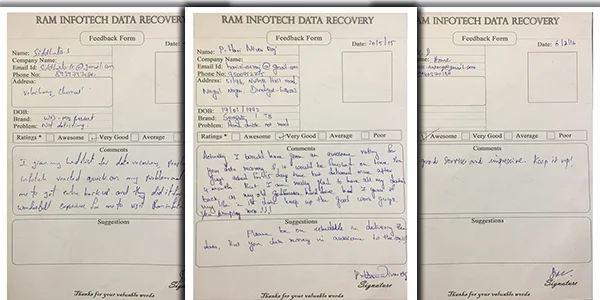
Customer Testimonials

Data Recovery Process
Six simple steps from pickup to getting your files back, with a clear quotation before any work starts.
-
01
Step 1
Door-Step Pickup
We collect your hard disk, SSD or memory device from your home or office.
-
02
Step 2
Analysis & Consultation
Our engineers diagnose the fault and explain what happened to your data.
-
03
Step 3
Best Quotation
You get a clear quotation for the service before any work begins.
-
04
Step 4
Data Recovery
Recovery is carried out using professional tools in our lab.
-
05
Step 5
Data Verification
We check the recovered files so you can see exactly what was saved.
-
06
Step 6
Payment & Hand Over
Pay the recovery fee and collect your recovered data.
Frequently Asked Questions – Hard Drive Maintenance
Quick answers to the questions our customers ask most.
How often should I do hard drive maintenance?
A quick clean-up of old files and a Disk Cleanup once a month is enough for most computers. Run an error check whenever the computer becomes slow, freezes or shows disk errors.
Should I defragment my SSD?
No. Defragmenting is only useful for traditional hard disks. SSDs do not need it, and Windows optimises SSDs automatically, so avoid running manual defrag tools on them.
What does Disk Cleanup remove?
Disk Cleanup removes temporary files, old internet downloads, files in the Recycle Bin and other unnecessary system files that take up space on your drive.
How do I check my hard drive for errors?
Open This PC (My Computer), right-click the drive, choose Properties, open the Tools tab and click Check under Error checking.
What are the warning signs that a hard drive is failing?
Clicking or grinding noises, very slow performance, frequent freezing, files that will not open and the drive not being detected are common signs. Back up your data immediately and stop heavy use of the drive.
Will maintenance prevent data loss?
Maintenance keeps your drive running smoothly, but it cannot stop every failure. Always keep a backup of important files on a second drive or in cloud storage.
I lost my college or project work. Can you recover it?
Yes. We regularly recover academic and project work from failed hard disks, laptops, external drives, memory sticks and SSDs.
Do I have to pay if my data cannot be recovered?
No. We work on a ‘no data, no fee’ basis. You pay the recovery fee only after you have checked the recovered file list and are happy with the result.
What are your opening hours?
We are open Monday to Saturday, 10:00 AM to 8:00 PM. Sunday is a holiday. Call 070921 14422 or WhatsApp us to book a consultation.
Still have a question? Call 070921 14422 or WhatsApp us.
Our Clients











Our Branches
Vadapalani Adyar Tambaram Ambattur Velachery Porur Madipakkam Omr Guduvanchery Villivakkam















Google Reviews
- Fantastic service. Professionalism in delivery, trust and commitment...
Srinivasa Prasanna - Thank you so much Raminfotech data recovery Team ...
natarajan natarajan - Write A Review
-